
SecretDoor manual
How SecretDoor works, from creating your vault to backing it up. The screens below are from the Android app. An iPhone version may be coming soon.
How it works
SecretDoor is a password manager with no server. Your vault is a set of encrypted records stored in the app on your phone. You unlock it with a master password that only you know; the password is never stored and never sent anywhere.
- There is no account and no sign-in. Installing the app and creating a vault is all it takes.
- Items are encrypted before they are saved. Names, usernames, notes and everything else are unreadable without your master password.
- Because nothing is stored online, a lost phone means a lost vault unless you made a backup. SecretDoor cannot recover it for you.
Create your vault
On first launch you choose a master password for a new vault. Pick a long one, preferably a few random words: it is the only thing protecting your data, and anyone who gets a copy of your backup can try to guess it. You can add an optional hint, which is stored only on your phone and shown on the unlock screen if you tap “Show master password hint”.
If you already have a SecretDoor backup (from an old phone, or from the other platform), choose Restore from backup instead and enter that vault’s master password.
Unlock with a PIN or biometrics
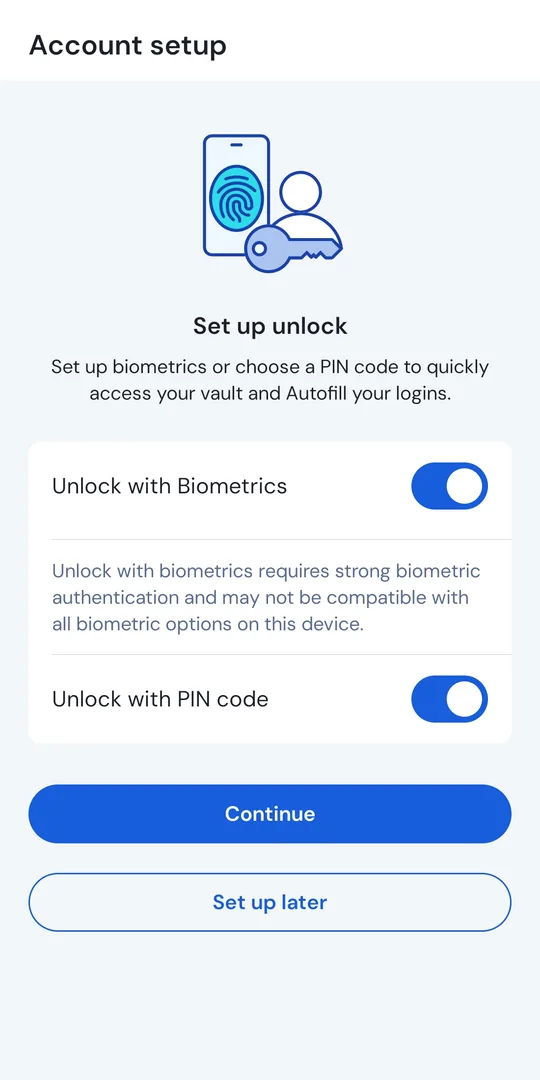
Typing a long master password every time is tiring, so SecretDoor offers two shortcuts: biometrics (fingerprint or face) and a PIN code. Both are optional and you can turn them on during setup or later in Settings > Account security.
They are convenient but a little weaker than the master password: someone who knows your PIN and has your phone could unlock the vault. The master password always works, and the vault locks itself after the timeout you choose. After a restart the master password is required.
More in Security.
Your vault
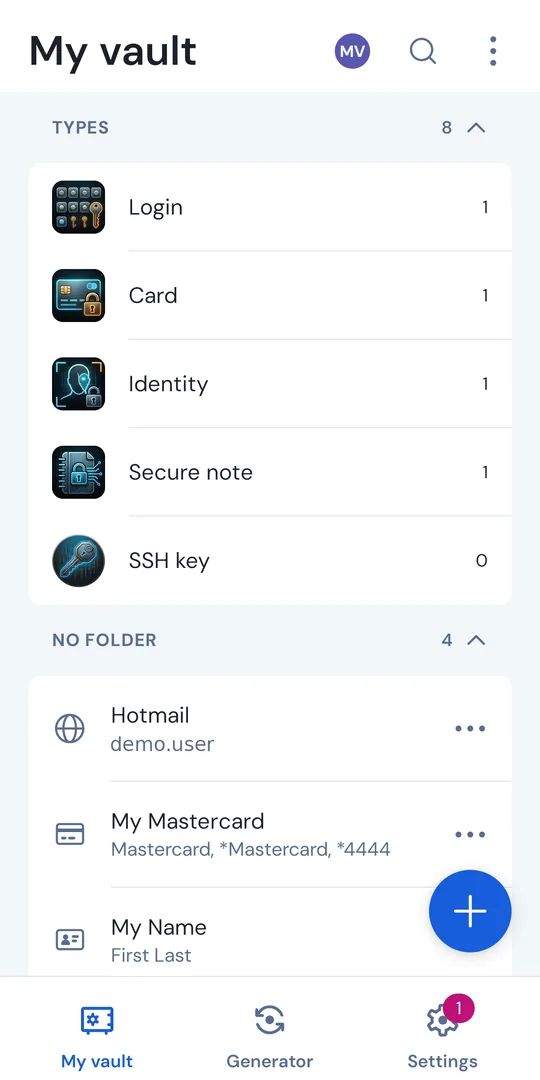
The My vault tab lists everything you have saved. At the top the Types section counts items by kind: logins, cards, identities, secure notes and SSH keys. Below that are your folders and the items that are not in a folder.
- Tap an item to see its details, copy a value, or open its website.
- Use the search icon to find items by name, username or website.
- The + button adds a new item.
- Mark items as favorites and sort them into folders to keep things tidy. Deleted items go to the trash first.
- The vault picker next to the title appears when you have more than one vault. See Managing vaults.
Add items
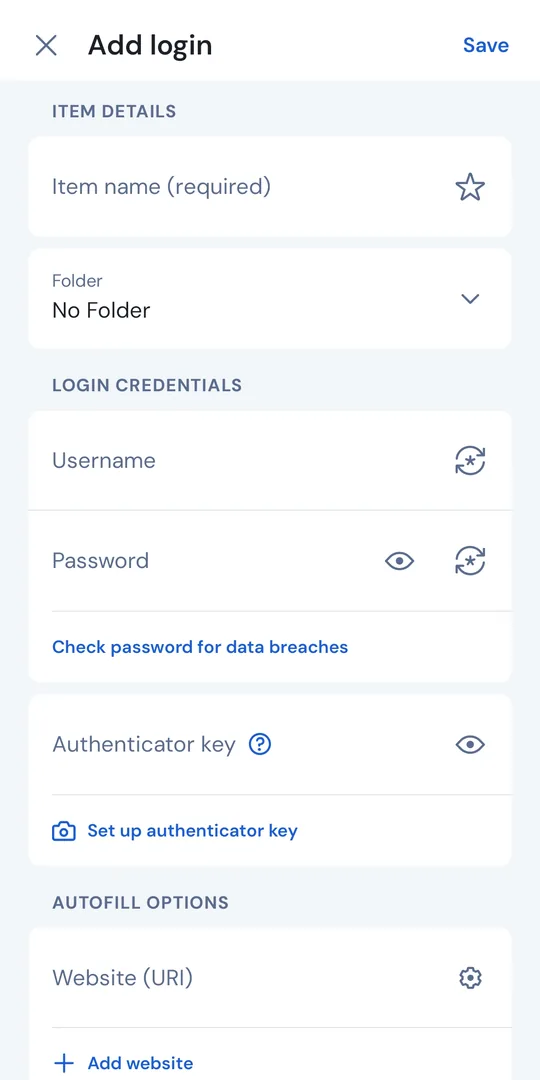
Tap + and choose the kind of item. A login has a name, an optional folder, a username, a password and one or more websites. Next to the username and password fields you will find buttons to generate a new value and to show or hide it.
- Authenticator key: paste or scan the key from a website’s two-step setup and SecretDoor shows the live six-digit codes. Learn more.
- Website (URI): tells autofill when to offer this login. The gear icon sets how strictly addresses must match. Learn more.
- Check password for data breaches: an optional lookup that sends only a short partial hash, never the password.
Other item types are cards, identities, secure notes, SSH keys, bank accounts, driver’s licenses and passports. You can also add custom fields, attachments and ask for the master password again before a sensitive item is shown (re-prompt).
Generate passwords
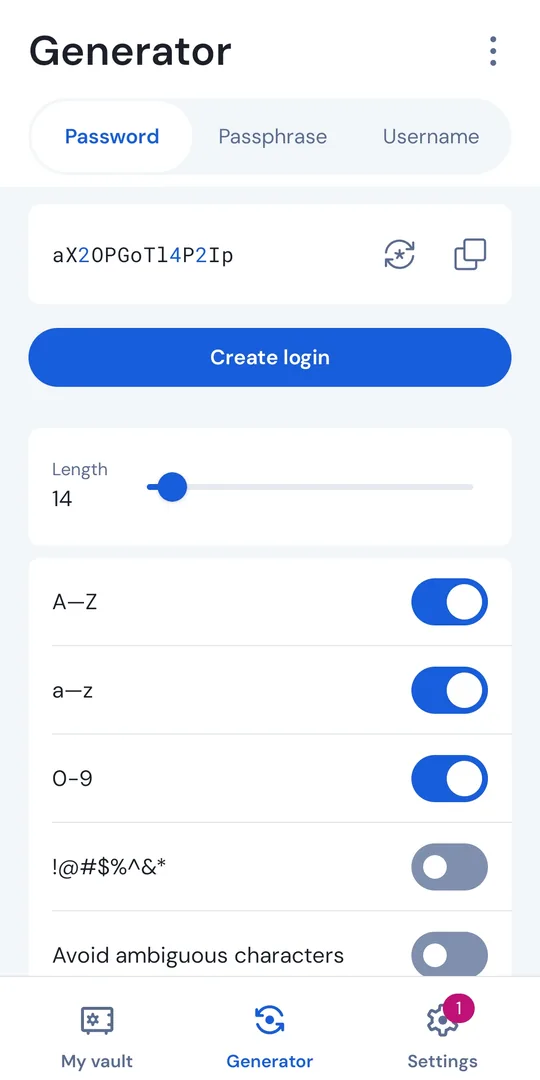
The Generator tab creates strong random values. Choose Password, Passphrase (random words, easier to type) or Username. Set the length and which character types to include, tap the circular arrows for a new one and the copy icon to copy it.
Create login saves the generated value straight into a new login. Earlier values are kept in the generator history from the menu. More about the generator.
Turn on autofill
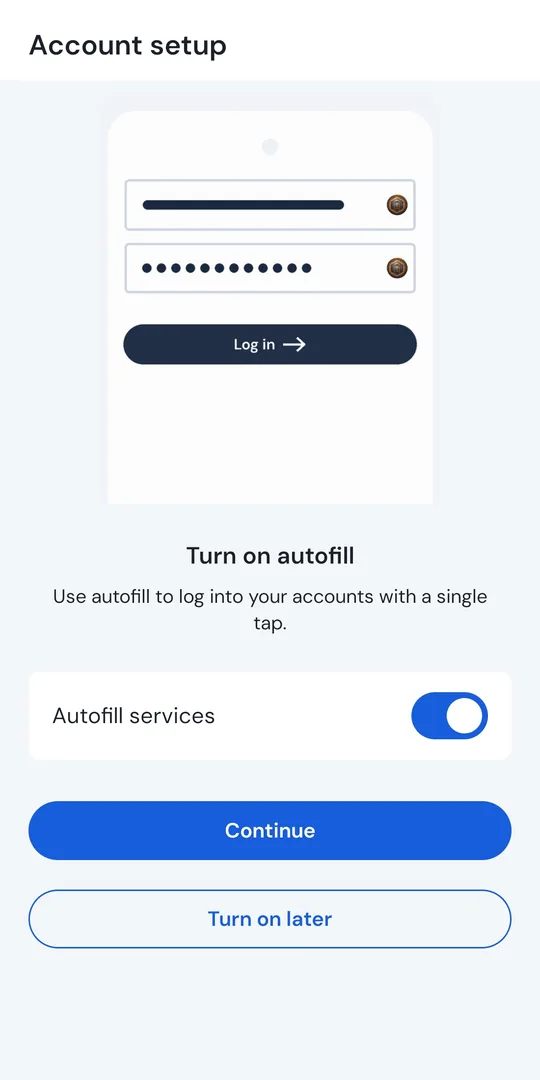
With autofill on, SecretDoor offers your saved login when you tap a username or password field in an app or browser, so you don’t have to switch apps and copy. Android asks you to choose SecretDoor as the autofill service. You can do this during setup, or later in Settings > Autofill.
Browsers need an extra step, and a few apps don’t support autofill and need the optional accessibility method. Both are covered in Autofill.
Back up your vault
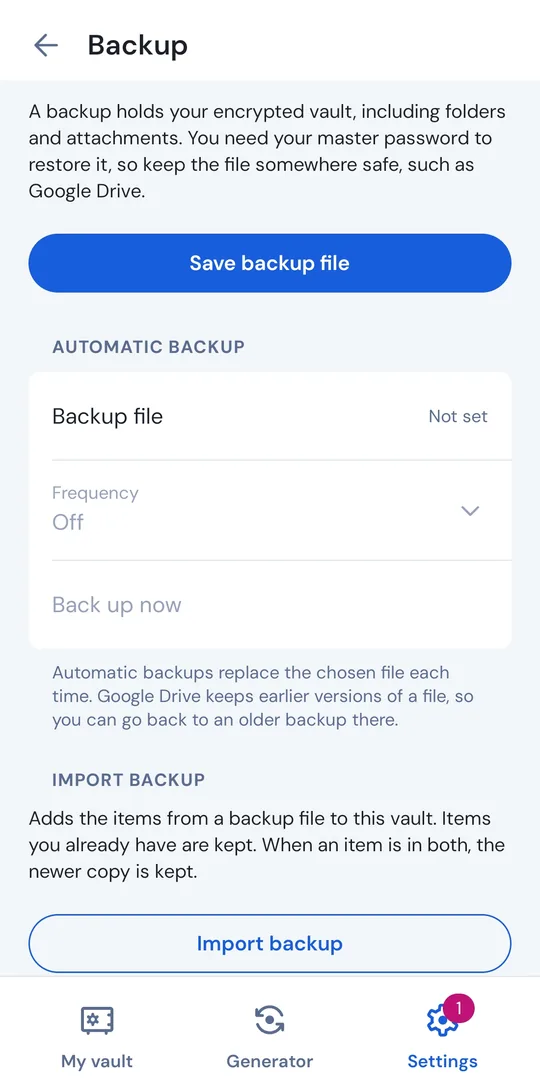
Open Settings > Vault > Backup. A backup is one .secretdoor
file holding your whole vault, encrypted as a whole.
- Save backup file writes a backup wherever you choose: a Google Drive folder, a USB drive, another phone.
- Automatic backup: pick a file once and a frequency (daily or weekly). SecretDoor then rewrites it on schedule, even while the vault is locked. A cloud folder that keeps old versions gives you several restore points.
- Import backup adds the items from a backup to this vault or as a separate vault. On a new phone, use Restore from backup when you create your vault.
Keep at least one backup that is not on the phone, and try a restore once to make sure it works. Details in Backups.
Settings
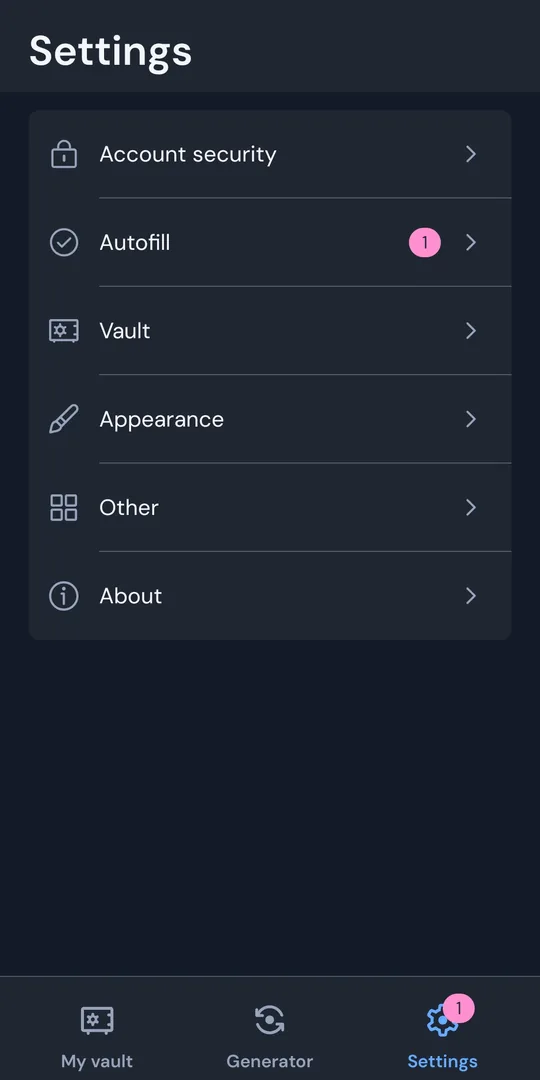
The Settings tab has these sections:
- Account security: unlock with biometrics or a PIN, the vault timeout and what happens when it expires, and changing your master password.
- Autofill: autofill service, browser and accessibility options.
- Vault: backups, import, export, folders and managing vaults.
- Appearance: language, theme (light, dark or system) and more.
- Other: clipboard clearing and similar options.
- About: version, this manual, the privacy policy, the source code and the license.
More topics
Basics
- BackupsProtect yourself against losing your phone.
- Managing vaultsRename, delete and add vaults.
- SecurityHow the vault is encrypted and what it cannot protect you from.
Using SecretDoor
- AutofillFill logins and cards in apps and browsers.
- GeneratorPasswords, passphrases and usernames.
- Authenticator codesTwo-step verification codes.
- SSH keysGenerate or import SSH keys.
- URI match detectionWhich logins show up for a website or app.
- Master password re-promptAsk again before sensitive items are used.
- Importing dataBring in items from a backup or another app.
- Flight recorderDiagnostic logs for bug reports.
- PremiumWhat “Premium” means in SecretDoor.